From time to time, a Domino administrator needs to retrieve a file stored on the server or, alternatively, upload a file to it. However, this requires access to the server’s operating system, which is not always available.
This application allows you to transfer files without needing access to the server’s operating system. It allows admins to transfer files directly from the Notes client or even Nomad.
How to get
If you would like more detailed information, a demonstration or a price quote, please do not hesitate to contact us.
Install and config
To use the application, you need at least basic administrative knowledge and (for some features) sufficient permissions.
- Create an application on the server where you want to transfer files. For the application to work with files on the server, the application must be located on that server; it cannot be on the client’s local machine.
- Sign it with by adequate ID (that are allowed to run unrestricted operation in LotusScript on server). Or you can sign template and create application from it.
- Set the ACL for app. The Admin (person or persons group) should have the supervisor role set to access the application settings. The server on which the application runs must also have full access.
Keep in mind that, from the operating system’s perspective, both downloading and uploading files to and from the application are performed under the Domino server’s own permissions. Therefore, it will only be able to work with files for which it has the necessary permissions. - Set the application setting (Settings / Application setting in navigator or in menu). Important setting is Home server on first tab. Explanation of each item is directly in the settings. You can also set the data directory on the server, or the system will set it automatically when the transfer agent is running.
- A valid license must be entered in the application settings. The procedure is described in a separate document. Without a valid license, the application will not transfer any file.
Usage
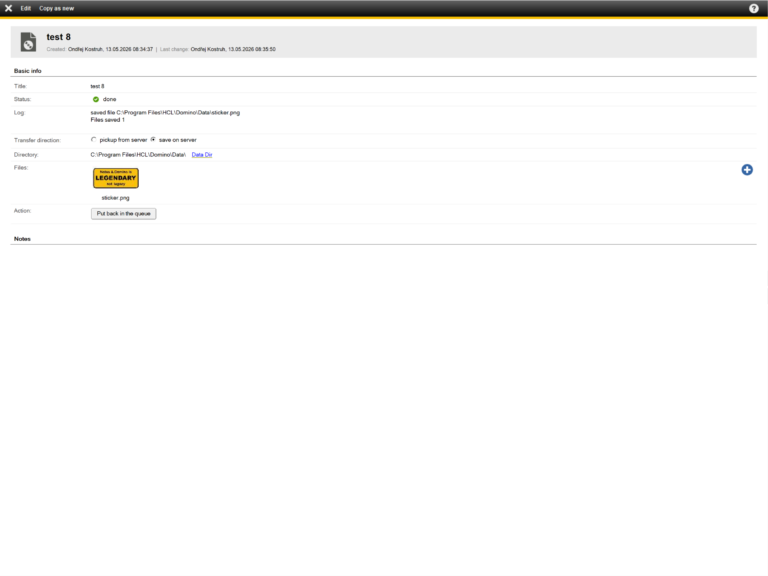
Simply create a new transfer request using the New file transfer action. Fill in the required fields and click the Add to the queue button to add the request to the queue.
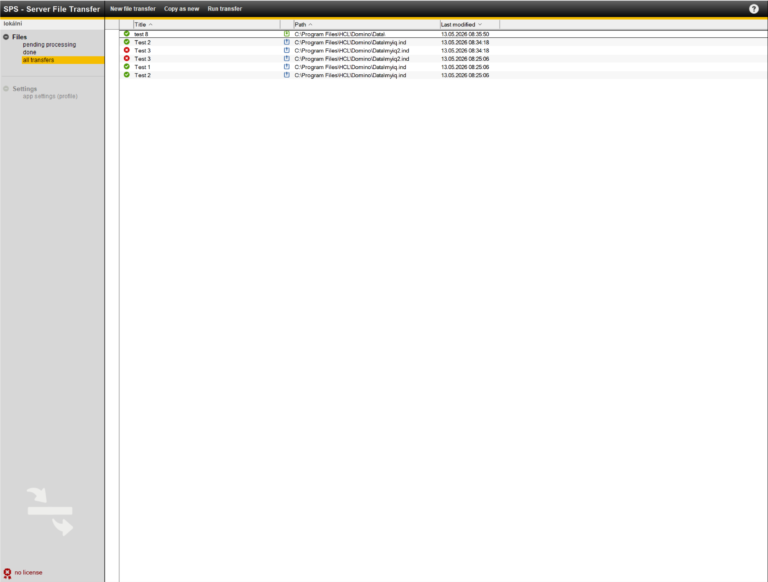
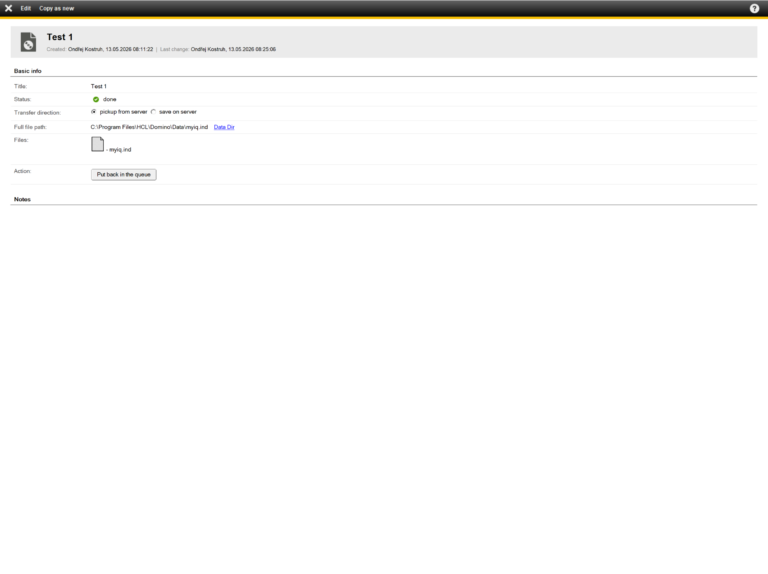
The queue can contain one or more requests. Running the agent on the server using the Run transfer action will initiate the transfer of all requests in the queue. An error in one of the requests does not mean the end of processing. The agent will attempt to process all of them. The processing result is saved for each one.